Open a new tab and look at what your browser offers you: a search box, a grid of sites you visited most this month, and possibly a news feed you never asked for. Notice what's missing — the pages you deliberately decided were worth keeping. Your browser shows you what you did recently, not what you chose to save.
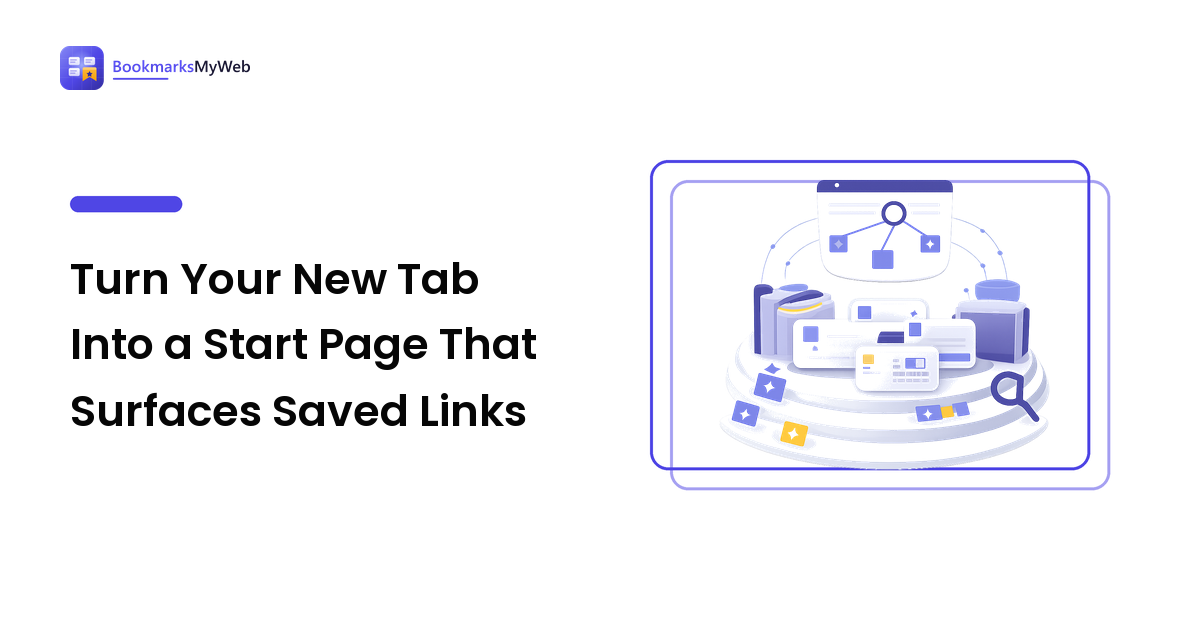
The key point up front: a start page is a retrieval surface, not decoration. Its job is to put a small, deliberately chosen set of saved links where you can't avoid seeing them, and to give you one keystroke into searching everything else. Get that right and a chunk of your library stops being write-only. Get it wrong — 60 icons and a weather widget — and you've built another thing to ignore.
What a start page is (and what it isn't)
Three different things get called "start page", and browsers treat them separately:
- Homepage — what loads when you press the Home button.
- Startup page(s) — what opens when the browser launches.
- New tab page — what appears every time you open a tab, which is the one that matters, because it's the one you see dozens of times a day.
The new tab page is the highest-traffic screen in your browsing life. Anything you put there gets seen without effort; anything you leave in a folder three levels deep in the bookmark bar does not. That asymmetry is the entire argument for doing this.
What actually belongs on it
The temptation is to recreate your whole library. Don't. A start page works by being small enough to scan in one glance.
A search box that searches your saves. The single most valuable element. If it only searches the web, you've built a slower version of the address bar.
Your active shortlist — five to twelve links. Not your favourites of all time: the things this month is about. A course, a project's documentation, the three references you keep re-opening.
One resurfacing slot. A random or oldest-first saved link, a "read next" pick from your queue, or simply the last five things you saved. This is what stops old saves from being invisible forever, and it's the same principle behind the review habits in our guide to finding saved pages you half-remember.
A capture button. One click to save the page you're on, or to add something to the reading queue. Retrieval and capture on the same surface keeps the loop closed.
What doesn't belong: news feeds, social timelines, sponsored tiles, and anything animated. A start page you have to escape from costs you more attention than it saves.
Setting one up, browser by browser
The mechanics differ more than you'd expect, and it's worth knowing what's built in before installing anything.
Chrome and other Chromium browsers
Chrome lets you set the homepage and the startup pages to any URL from Settings, but the new tab page can't be changed natively — replacing it requires an extension, and any extension that does so can see the pages you open. Choose one you're willing to grant that.
Two native features do a lot of the work without an extension. Site search (Settings → Search engine → Site search) lets you type a short keyword in the address bar, press Tab, and search a specific site — including a bookmark manager's web app, if it supports a search URL. And typing @bookmarks in the address bar switches the omnibox into searching your bookmarks only. Neither is a start page, but both solve the retrieval half.
Firefox
Firefox is the most accommodating out of the box: Settings → Home lets you set the homepage and the new-window page to a custom URL, and lets you switch individual new-tab sections (shortcuts, recommended stories, recent activity) on and off. Turning the feed off and the recent activity on is a two-minute improvement.
Firefox also keeps a feature power users miss: bookmark keywords. Right-click a bookmark, choose Edit, and give it a keyword — type that word in the address bar and you go straight there. Add %s to a bookmarked search URL and the keyword becomes a parameterised search. It's the fastest retrieval mechanism in any mainstream browser and it costs nothing.
Edge
Edge lets you customise its own new tab layout, including turning the content feed off entirely and choosing a quiet layout — do that first, before considering anything else. Homepage and startup pages are configurable in Settings the same way as Chrome.
Safari
Safari's Start Page is configurable from the page itself: click the settings button in the lower-right corner and toggle sections such as Favorites, Frequently Visited, Privacy Report, and Reading List. Turn Reading List on — it puts your read-later queue on the new tab surface, which is exactly the resurfacing slot described above, with no extra software.
Three start-page setups that work
Pick the one that matches how much you save.
The minimalist (browser-only). Turn off feeds, keep a single row of shortcuts, and pin your bookmark manager or reading queue as the first shortcut. Set up address-bar keywords for the two or three places you search most. Zero installs, no permissions granted, maybe fifteen minutes of work. This is the right default for most people.
The saver's dashboard (hosted start page). Use a start-page service or extension that hosts a grid of links you curate, usually with sections, a search box, and a save button. The advantage is that it syncs across machines and browsers, so the same start page appears at work and at home. The trade-off is real: your link set lives with a third party, and a start-page extension sees every new tab. Prefer ones with an export.
The self-hosted dashboard. If you already run a home server, projects like Homer, Dashy, Glance, or Homepage give you a start page you host yourself — sections, links, and often live widgets, defined in a config file and set as your homepage. Best fit for people who already keep services at home; overkill for anyone who doesn't.
Keep it from rotting
A start page decays the same way a bookmark bar does — by accumulation. Three habits keep it useful:
- Cap the shortcut count. Pick a number (ten is a good default) and treat it as fixed. Adding something means removing something.
- Review it monthly. Two minutes: anything you haven't opened since the last review comes off the start page and goes into your library with proper tags. It isn't deleted, it's demoted — which is the whole point of having a tagged library underneath, as covered in organizing bookmarks into a usable library.
- Let projects expire. When a project ends, its shortcuts come off the same week. The start page reflects the current month, not your history.
If your problem is more "forty tabs open" than "buried bookmarks", the start page helps but isn't the fix — the weekly clear-out routine in our guide to too many open tabs is the piece that goes with it.
A 20-minute setup
- Turn off your browser's content feed and recommended stories.
- Decide the ten links that describe what you're working on this month.
- Put them on the new tab surface — as shortcuts, favourites, or a dashboard.
- Add one resurfacing element: Reading List, recent saves, or a random saved link.
- Add a search shortcut into your bookmark manager or read-later app (site search in Chromium, a keyword in Firefox).
- Add a one-click save button — extension, bookmarklet, or the browser's own bookmark shortcut.
- Put a recurring monthly reminder in your calendar to prune it.
FAQ
Can I change the new tab page without installing an extension?
In Firefox, Edge, and Safari you can meaningfully customise or simplify it natively. In Chrome you can change the homepage and startup pages but not the new tab page — that needs an extension. If you'd rather not grant that access, set your start page as the startup page and reach it with the Home button, then rely on address-bar shortcuts for retrieval.
Are start page extensions safe?
They're a genuine permission decision: an extension that renders your new tab typically sees the pages you open. Before installing, check who publishes it, what permissions it asks for, whether the developer is identifiable, and whether you can export your links if you leave. Prefer the smallest tool that does the job, and remove anything that changes ownership or quietly expands its permissions.
Should my start page show all my bookmarks?
No. A start page that shows everything shows nothing — you'll scan past it within a week. Show the current shortlist plus a search box, and let the search box reach the rest. Depth belongs in the library; the start page is the front counter.
What's the difference between a start page and a bookmark manager?
A bookmark manager stores and searches everything you save, at any scale. A start page is a small display surface that surfaces a handful of those saves plus a way into search. They work best together: the manager holds the library, the start page keeps a slice of it visible.
Make the tab you open most often do some work. Once you know what you want on it — saved links, a search box, one resurfacing slot — compare browser start pages and bookmark managers on BookmarksMyWeb and pick the one that fits your setup.