You find a brilliant article, a tool you'll need next month, a recipe, a piece of research. You mean to come back to it. Then it vanishes into an overflowing bookmark bar, a forgotten tab, or a note you can't locate. Social bookmarking exists to fix exactly that — to give the web pages you care about one reliable home, with enough structure that you can find them again.
This guide explains what social bookmarking is, how it differs from the bookmarks built into your browser, and a simple, repeatable system for saving and resurfacing pages. The short version: save to one place, tag lightly, and review on a schedule. You don't need a complicated setup — you need a habit you'll keep.
What social bookmarking actually means
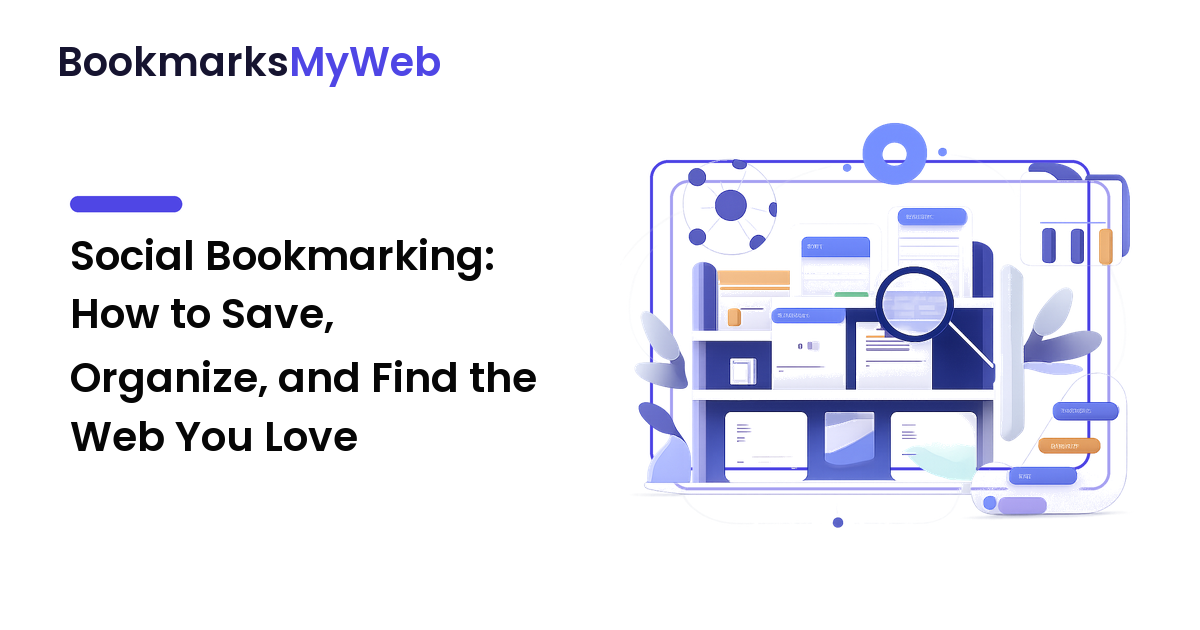
Social bookmarking is the practice of saving links to a dedicated service rather than burying them in your browser. "Social" originally meant the saves were public and discoverable — you could see what other people were bookmarking around a topic, and they could see yours. That discovery layer still exists in many tools, but the term has broadened. Today, social bookmarking usually means any service built specifically for saving web pages, with features browsers don't offer: tags, full-text search, notes, syncing across devices, and the option to share a collection.
The key shift is intent. A browser bookmark is a quiet pointer you set and forget. A social bookmark is a deliberate save into a system designed for retrieval and, often, for sharing.
Social bookmarking vs. browser bookmarks
Browser bookmarks are fine for a handful of sites you open daily. They start to fail when your collection grows, for a few concrete reasons:
- Weak search. Most browser bars let you search by title or URL, not by the page's contents or your own notes.
- Folders that don't scale. A deep folder tree is tidy for a week and unusable after a hundred saves, because a page rarely belongs in just one folder.
- No context. A bookmark named "Untitled — example.com" tells future-you nothing about why you saved it.
- Patchy sync and sharing. Sharing a curated set of links, or moving them between browsers, is clumsy at best.
A dedicated bookmarking service is built around the opposite assumptions: many saves, flexible tags instead of rigid folders, search across content and notes, and easy sharing. If your saved pages already feel like a junk drawer, that's the signal to move to a real system.
A simple system for saving the web
You don't need to adopt every feature a tool offers. This four-part system works in almost any bookmarking service.
1. Capture in one place
The biggest single improvement is consolidation. Choose one home for pages worth keeping and route everything there — usually via a browser extension, a mobile share sheet, or a keyboard shortcut. The best home is the one you'll actually use without thinking. Stop scattering saves across bookmarks, notes, chat-to-self, and open tabs.
2. Tag instead of foldering
Tags beat folders for one reason: a page can carry several at once. A research article might be read-later, project-x, and reference simultaneously — impossible in a single folder. Keep your tag list small and consistent. A dozen reused tags will serve you far better than a hundred one-off ones.
3. Add one line of context
When you save, take three seconds to fix the title and add a short note: "pricing comparison, revisit before renewal." That single line is the difference between finding the page in seconds and giving up. Many tools also let you save a highlight or quote from the page, which is even better for later recall.
4. Review and prune
Saved collections rot. Pages move, sites disappear, and old links break. A short review every few weeks keeps the library trustworthy: clear out what you'll never revisit, fix or remove dead links, and re-tag anything you struggled to find. Reviewing also resurfaces good pages you'd otherwise forget you saved.
Public vs. private collections
One choice worth making deliberately is how visible your saves are. A private library is a personal tool — notes and all. A public or shared collection turns your bookmarking into something others can benefit from: a reading list, a resource hub for a team, or a curated topic feed. Choose private when you're saving working material or anything sensitive; choose public when curation is the point and you want the discovery and sharing benefits. Many tools let you mix both, keeping most saves private and sharing specific collections.
Choosing an approach
There's no universally "best" tool — only the best fit for how you work. Weigh a few factors and pick the one that wins on what matters most to you:
- Retrieval: strong search and tagging if you save heavily and need things back fast.
- Sync: reliable saving across the devices you actually use.
- Privacy: clear control over what's public and what stays yours.
- Sharing: easy public collections if curation is part of your goal.
- Cost and longevity: a sustainable price, and an export option so your library is never trapped.
State the reason for your choice to yourself — it makes the trade-offs honest and the decision easier to revisit later.
FAQ
Is social bookmarking the same as a read-it-later app?
They overlap. Read-it-later apps focus on capturing articles to read soon, often with a clean reading view. Social bookmarking is broader: any page worth keeping, organized for long-term retrieval and sometimes sharing. Many people use one tool for both.
Are my social bookmarks public by default?
It depends on the tool. Some default to private, others to public. Check the default before you save anything sensitive, and use private collections for working material.
Folders or tags — which should I use?
Tags, mostly. A small set of consistent tags scales better than a deep folder tree, and a single page can hold several tags at once. Use folders only for a few broad, stable groupings if you like them.
How do I keep my collection from becoming a junk drawer?
Capture to one place, tag lightly, add a line of context, and run a short review every few weeks. The maintenance habit matters more than the tool.
Can I move my bookmarks if I switch tools?
Usually yes — look for an export feature (often HTML or a standard format) before you commit. The ability to export keeps your library portable and protects you from lock-in.
Next step
This week, pick one home for the web you want to keep, save the next good page you find with a tag and a one-line note, and put a short review on your calendar. A small, consistent system beats a perfect one you abandon — and it turns a chaotic bookmark bar into a personal web library you actually trust.