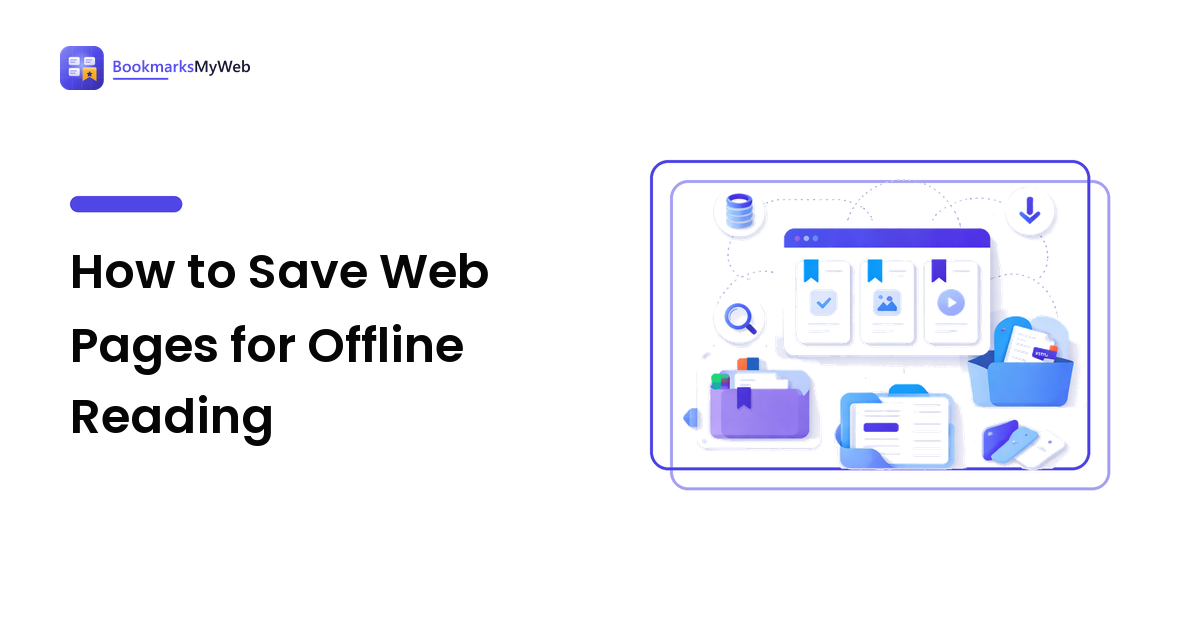
To save a web page for offline reading, capture the page content, not just its address. The three reliable methods are a read-it-later app that syncs an offline copy to your devices, your browser's print-to-PDF or save-page function, and a single-file HTML archive. A bookmark alone stores only a link, which needs a live site and a connection to work.
Most people learn that distinction at the worst moment: on a plane or in a tunnel, tapping a bookmark saved for exactly this and getting an error page. The bookmark was never the article — it was a street address for a building that may not still be standing.
Why doesn't a bookmark work offline?
A bookmark is a pointer. Your browser stores the URL, the title, and usually a small icon; the article itself, every word and image of it, stays on the publisher's server. Opening the bookmark requests that page all over again.
So a bookmark depends on two things you do not control: a working connection at the moment you read, and the page still existing at that address. The first fails on commutes and flights. The second fails slowly and permanently — sites redesign, articles move behind paywalls, small blogs shut down, and the link quietly rots. If you have ever gone back to an old save and found a 404 or a login wall, you have met the second failure; our guide to recovering dead bookmarks covers what to do after the fact. Saving the content is how you avoid needing that guide at all.
What are the ways to save a web page offline?
There are more methods than most people realise, and they differ less in difficulty than in what they preserve. Compare them by what you actually want back later.
| Method | What it stores | Best for | Main trade-off |
|---|---|---|---|
| Read-it-later app | Cleaned article text, images, synced across devices | A reading queue you work through on phone and tablet | Strips page layout; content lives on a vendor's servers |
| Browser "Save page as" | The page as files, on your own disk | Keeping one page exactly as it looked | Creates a folder of assets; awkward to organise at volume |
| Single-file HTML archive | The whole page bundled into one file | A durable personal archive you own | Manual; you manage the files and their backups |
| Print to PDF | A fixed, paginated snapshot | Records, citations, anything you may print or annotate | Text reflows badly on phones; interactive elements are lost |
| Browser reading list / offline tab | The browser's own cached copy | Quick, zero-setup saves for the next day or two | Tied to one browser; caches expire without warning |
| Bookmark manager with archiving | The link plus a stored copy of the page | One library that is both index and insurance | Usually a paid feature; archive quality varies |
No method wins outright. A researcher building a citable record and a commuter clearing a queue of long reads want different things, and picking by purpose beats picking by feature list every time.
How do I save an article in a read-it-later app?
For most people reading on the move, this is the path of least resistance. The apps are built around exactly this job: save now on whatever device is in your hand, read later on whatever device you have with you, connection or not.
The workflow is the same across the well-known options — Pocket, Instapaper, Matter, Readwise Reader, and Wallabag among them:
- Install the browser extension and the mobile app. Sign in to the same account on both; that shared account is what makes sync possible.
- Save from the page itself. Click the extension, use its keyboard shortcut, or on a phone use the share sheet. One tap is the goal — capture friction is what kills the habit.
- Open the app on your reading device while still online. This is the step people skip. Most apps download article content on launch or refresh, not the instant you save.
- Confirm the offline copy exists. Some apps mark downloaded items; others let you set "download automatically". Check the setting once rather than trusting it.
- Test it properly. Turn on airplane mode and open two saved articles. Thirty seconds of testing now beats discovering the gap at 30,000 feet.
Step three is the most common reason "offline reading" fails. Saving adds an item to your queue; syncing brings the text down to the device. Save five articles in the taxi and lose signal, and the app may hold five headlines and no articles. Open it before you go dark. For the wider habit these tools sit inside, see our guide to saving pages for later; for how the main apps differ on offline behaviour, highlights, and cost, see the read-it-later app comparison.
How do I save a web page without an app?
Sometimes you want the page on your own disk, under your own filenames, with nothing between you and it. Your browser can do this already.
- Print to PDF. Press Ctrl+P (Cmd+P on a Mac) and choose "Save as PDF". Works in every major browser and on iOS and Android. The output is fixed-layout — perfect for a record you might cite or annotate, less comfortable on a small screen because the text will not reflow.
- Use reader mode first. If the page has a reader view, switch to it before printing. You will drop the ads, sidebars, and cookie banners, and the PDF becomes readable rather than merely complete.
- Save page as, complete. Ctrl+S offers "Web page, complete", writing an HTML file plus a folder of images and styles. It preserves the real page, but the paired folder is fragile to move — separate them and the page loses its images.
- Bundle it into one file. A single-file archive keeps everything, images included, in one self-contained HTML file that opens in any browser. Extensions such as SingleFile do this in a click; Safari's Web Archive format serves the same purpose. One file per page is far easier to live with than one folder per page.
The honest trade-off: you now own the filing. Nothing tags these files, searches inside them, or syncs them to your phone unless you put them in a synced folder yourself. Fine for a few dozen important pages, unworkable for a few thousand.
Which method should I use?
Match the method to why you are saving, not to how much effort it takes:
- Reading a queue of articles on the move — a read-it-later app with offline download enabled. Sync is the feature you are paying for.
- Keeping a page as evidence, a receipt, or a citation — print to PDF. Fixed layout is a virtue when the point is that it does not change.
- Building a permanent personal archive you control — single-file HTML in a synced folder, or a bookmark manager that stores page copies.
- Something you will read tomorrow and forget — the browser's reading list. Not everything deserves an archive.
- Research you will search through later — a bookmark manager with full-text search and archiving, so the copy is indexed rather than just stored.
Many people end up using two: an app for the reading queue and PDFs or archives for the small set of pages that must survive. That is not indecision, it is the right answer — a queue you empty and a library you keep are different jobs.
FAQ
Does bookmarking a page save it offline?
No. A bookmark saves the URL, not the content, so opening it still requires a connection and a live page. To read offline you need a method that captures the page itself — a read-it-later app with downloads enabled, a saved PDF, or an HTML archive.
How do I read saved articles on a plane?
Save them to a read-it-later app, then open the app while you still have a connection so it downloads the content, and confirm with airplane mode before you leave. Articles saved but never synced usually appear as titles with no text.
Can I save a whole website for offline reading?
Yes, with a site-mirroring tool such as HTTrack or the wget command, but treat this as a last resort. It is slow, produces large folders, and many modern sites do not mirror cleanly. For all but a handful of cases, saving the specific pages you want is faster and tidier.
Do saved pages keep working if the original site goes down?
A stored copy does — PDFs, single-file archives, and downloaded app content all live on your device or in your account. A plain bookmark does not; when the site goes, the link goes with it. That is the strongest argument for saving content rather than links.
What is the best format for archiving a web page?
Single-file HTML for anything you may want to search or reuse, since the text stays selectable and the page stays interactive. PDF when fixed pagination matters — citations, records, anything you might print. Keep both for pages you truly cannot afford to lose.
Next step
Start with the pages you would genuinely miss. Pick your next long read, save it to a read-it-later app, open the app to let it sync, then switch on airplane mode and check that the words are really there. Once that loop is reliable you can stop treating your bookmark bar as a library and start treating it as an index — with the content safely stored behind it. To choose a tool that stores real page content rather than just links, compare the best read-it-later apps and pick on offline behaviour first.