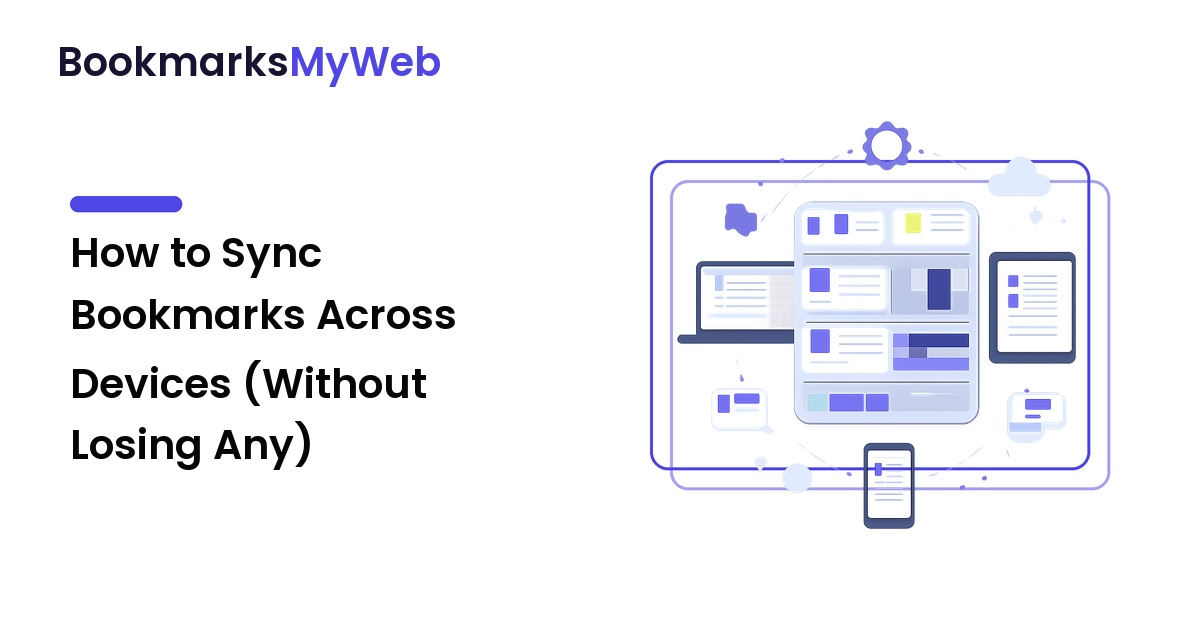
You save a great article on your laptop, reach for it on your phone that evening, and it isn't there. Syncing bookmarks across devices fixes that: one library that looks the same on every screen, so a page you keep at your desk is waiting on your phone by the time you're on the couch.
The short version: pick a single source of truth, turn on one — and only one — sync method, verify it on a second device, and keep a separate exported backup as a safety net. The trap most people fall into is running two sync systems at once (a browser's built-in sync and a bookmark manager), which quietly breeds duplicates. Below are the four ways to sync, how to choose for honest reasons, and how to make it stick.
First, get one thing straight: sync is not backup
Syncing and backing up feel similar, but they solve opposite problems, and confusing them is how people lose bookmarks they thought were safe.
Sync mirrors the same state across every device in near real time. That's the feature and the risk: delete a folder on your phone and sync deletes it on your laptop too; if a saved page rots into a 404, that dead link is now dead everywhere. Sync copies your mistakes as faithfully as your good saves.
A backup is a separate copy frozen in time — an exported file you can restore from after a bad delete or a lockout from the account your sync depends on. You need both. (When individual links rot rather than your whole list, that's a different fix — see how to recover a dead bookmark and stop link rot.)
The four ways to sync bookmarks across devices
There are four practical approaches. They differ on one question that decides most of the choice: do all your devices run the same browser, or a mix?
| Method | Across different browsers? | Needs an account? | Real-time? | Best when |
|---|---|---|---|---|
| Browser account sync | No — same browser only | Yes (browser vendor) | Yes | You use one browser everywhere |
| Dedicated bookmark manager | Yes | Yes (the service) | Yes | You mix browsers and platforms |
| Manual export and import | Yes | No | No — manual | You want zero accounts or a portable copy |
| Self-hosted / synced folder | Yes (with a client) | Your own | Depends | Control and privacy come first |
Browser account sync
Every major browser syncs bookmarks through its own account — Chrome via a Google account, Firefox via a Mozilla account, Safari through iCloud, Edge through a Microsoft account. Sign in on each device, enable bookmark sync, and changes propagate automatically.
It's the least effort if you already live in one browser, and usually free. The hard limit: it only works within that browser's world — Chrome's sync won't populate Firefox, and Safari's iCloud bookmarks won't show in Chrome on Windows. Privacy varies too: Firefox Sync is end-to-end encrypted by default, and Chrome offers an optional sync passphrase.
A dedicated bookmark manager
A dedicated bookmark manager stores your library on its own service, with an extension or app for each browser and platform. Because the bookmarks live in the manager, not the browser, they look the same whether you open Chrome at work, Firefox at home, or a browser on your phone.
This is the method that genuinely solves cross-browser, cross-platform syncing. The honest trade-offs: another account, often a subscription for the better features, and a third party holding your list. Choose one for a concrete reason — reliable extensions on every browser you use and an export option so your data is never locked in.
Manual export and import
Every browser can export your bookmarks to a single HTML file and import that file elsewhere. Move the file to another device and import it — done.
It needs no account, costs nothing, and works between any two browsers, since that HTML format is a shared standard. The catch: it's a snapshot, not live sync — save something new and the other device won't know until you export again. Treat it as a one-time migration or a portable backup, not an everyday sync.
Self-hosted or a synced folder
If control and privacy top your list, keep your bookmarks in a file you sync yourself — an exported HTML or JSON file in a cloud-drive folder that reaches each device, or a self-hosted bookmark server you point extensions at.
The payoff is ownership: no third-party service holds your library. The cost is upkeep, and a synced flat file doesn't merge simultaneous edits well, so it suits one writer better than a shared list. Most people don't need this lane, but it's the right answer when privacy is non-negotiable.
How to choose the method that fits you
No option is universally best — only the one that matches your devices, patience, and privacy bar:
- One browser everywhere? Use that browser's built-in sync and stop there — fewer moving parts, less to break.
- A mix of browsers or platforms? A dedicated bookmark manager is the only approach that spans them without gaps.
- Want no accounts or a portable copy? Export and import — free and standard, at the cost of doing it by hand.
- Privacy first? Prefer end-to-end encrypted sync, a passphrase, or a self-hosted file, so no vendor can read your list.
- Sharing with family or a team? Choose a manager built for shared collections.
Say your reason out loud, and the choice is easy to revisit later.
Set up bookmark sync so it actually sticks
A little order at the start prevents most headaches:
- Consolidate first. Pick the device whose bookmarks are most complete and correct — that's your source of truth. Clean up duplicates before you sync, not after you've copied the mess everywhere.
- Turn on exactly one sync method. Running a browser's sync and a manager at once, both watching the same bookmarks, is how phantom duplicates appear. Choose one; disable the rest.
- Sign in everywhere. Add the same account, or install the same manager, on every device, and enable bookmark sync specifically — some browsers sync history or passwords but leave bookmarks off.
- Verify on a second device. Save a test bookmark and watch it appear elsewhere before you trust the setup.
- Export a backup. Once everything matches, export an HTML copy and store it outside the sync — that's your undo button.
- Set a light cadence. Re-export every month or two so you always have a recent copy to fall back on.
Avoid duplicates, conflicts, and lost bookmarks
Most sync problems trace to a few causes:
- Double-syncing. Two systems syncing the same bookmarks is the top source of duplicates. One method, always.
- Deletion propagation. Deleting on one device deletes on all — export a backup before a big cleanup so it stays reversible.
- Import duplicates. Importing an HTML file that overlaps your current bookmarks stacks copies instead of merging. Import into a fresh folder so you can prune the overlap.
- Encryption lockout. A sync passphrase protects privacy, but forget it and you may have to reset sync and re-add devices. Store it where you keep other credentials.
- Account dependence. Your sync lives and dies with the account behind it — which is exactly why the separate export matters.
Your bookmark sync checklist
- [ ] Chosen one sync method, with a stated reason
- [ ] Picked a single source-of-truth device and cleaned it up first
- [ ] Signed in or installed on every device, with bookmark sync switched on
- [ ] Disabled any second sync system to prevent duplicates
- [ ] Verified a test bookmark appears on a second device
- [ ] Exported an HTML backup and stored it outside the sync
- [ ] Turned on encryption or a passphrase if privacy matters — and saved the passphrase
FAQ
How do I sync bookmarks across devices for free?
Two free routes: your browser's built-in account sync (Chrome, Firefox, Safari, or Edge) if all your devices use that browser, or exporting bookmarks to an HTML file and importing it elsewhere. Built-in sync is automatic but browser-specific; export and import is manual but works between any browsers.
Can I sync bookmarks between Chrome and Firefox?
Not with either browser's built-in sync — Chrome's sync only talks to Chrome, Firefox's only to Firefox. To keep two different browsers in step, use a dedicated bookmark manager with an extension for each, or export from one and import into the other for a one-time copy.
How do I sync bookmarks between my phone and computer?
Sign in to the same account, or install the same bookmark manager, on both, and switch on bookmark sync. With browser sync, use the same browser and account on each; with a manager, install its app on the phone and extension on the computer. A test bookmark confirms it crosses over.
Does syncing my bookmarks back them up?
No — and this catches people out. Sync mirrors the current state, so a deletion or a corrupted list is copied everywhere rather than undone. A backup is a separate exported file, frozen in time, that you can restore from. Keep one alongside sync.
Why aren't my bookmarks syncing?
Check the usual suspects: the same account signed in on both devices, bookmark sync specifically enabled (not just history or passwords), you're online, and a large library has had time to finish. Running two sync systems at once can make them stall — turn one off.
Is it safe to sync bookmarks?
Reasonably, with attention to encryption and account security. Prefer sync that's end-to-end encrypted or passphrase-protected so the vendor can't read your list, and secure the account with a strong password and two-factor login — whoever holds it holds your bookmarks.
Put it in place this week
Sync is a chore that pays off every single day once it's done. This week, pick one method for a reason you can say out loud, clean up your best device, turn sync on everywhere, and export a backup before you forget. Then save a page on your laptop and watch it land on your phone — that quiet moment is the whole point. Build a bookmark library that travels with you at bookmarksmyweb.com.